
Connect to Jira cloud
Jira is a required workspace-level connection. Troopr reads your team's Jira work to write standups, generate reports, and keep issues in sync with Slack. There are two ways to connect: sign in with Atlassian (recommended) or manual setup.
Sign in with Atlassian (recommended)
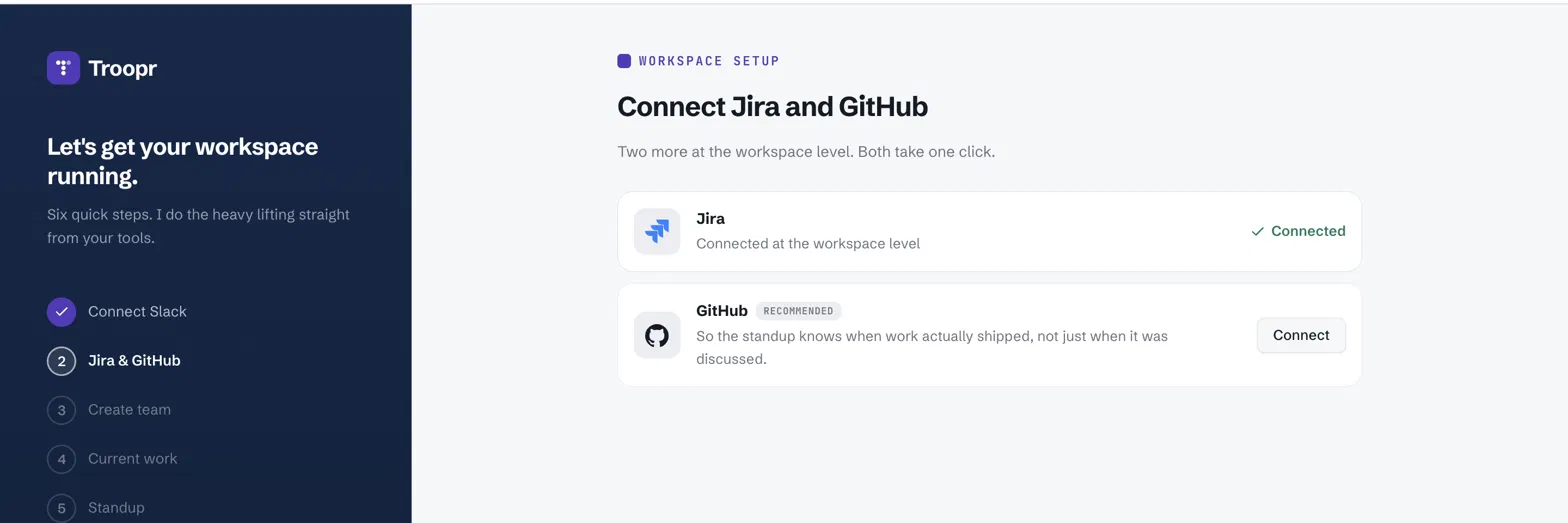
In the workspace setup flow, click Connect next to Jira.
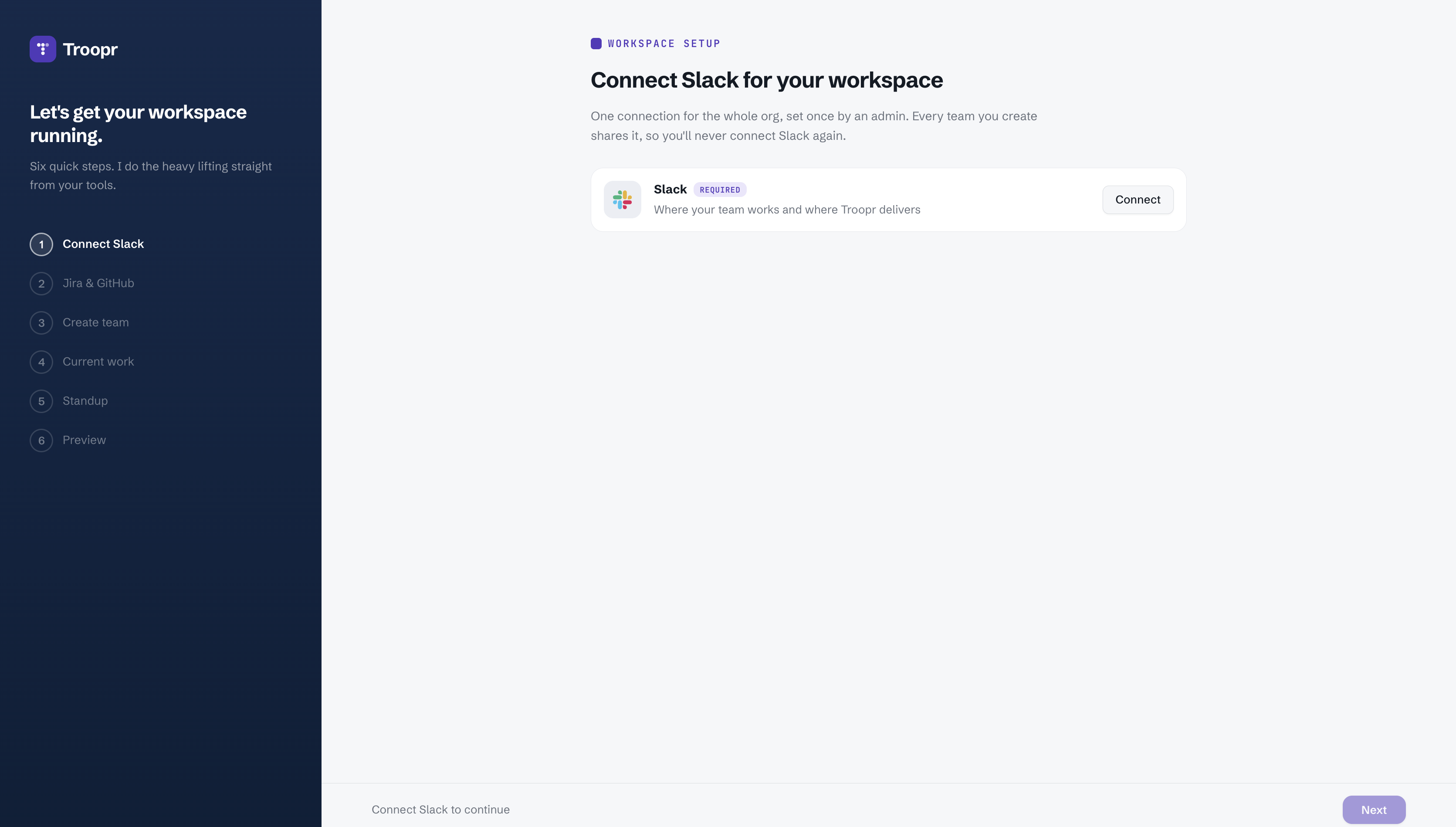
In the Connect Jira dialog, select Sign in with Atlassian.
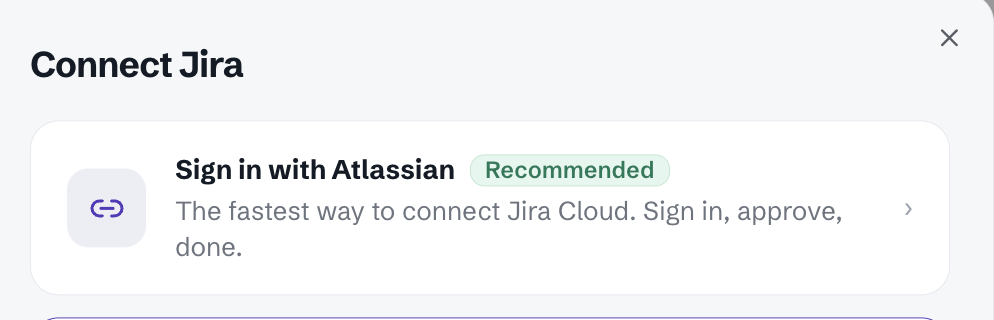
You are redirected to Atlassian. Select your Jira site from the Use app on dropdown and click Accept.
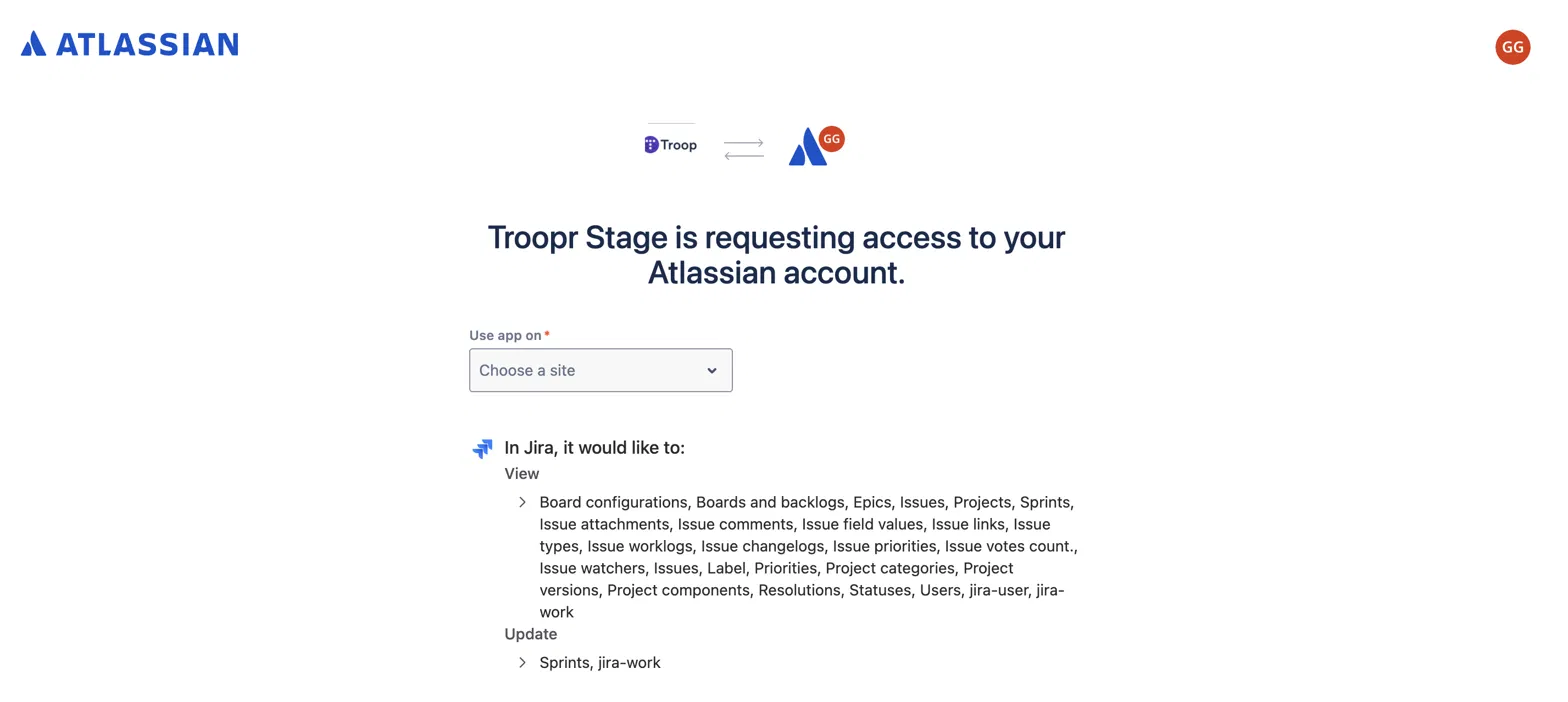
If your Atlassian account has access to more than one Jira site, a Choose your Jira site dialog appears. Select the site this workspace should connect to and click Link site.
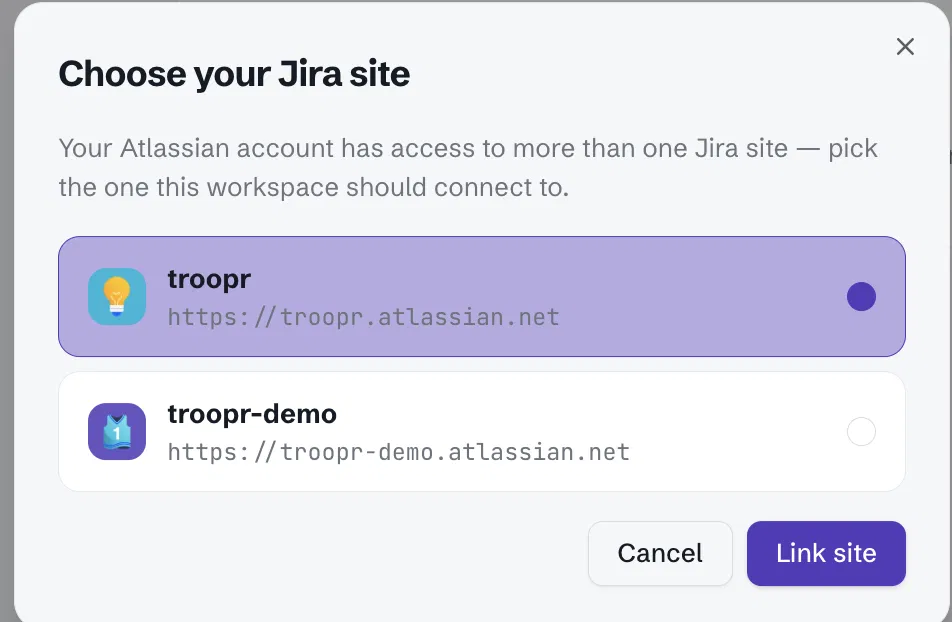
You are returned to workspace setup. Jira now shows Connected at the workspace level.
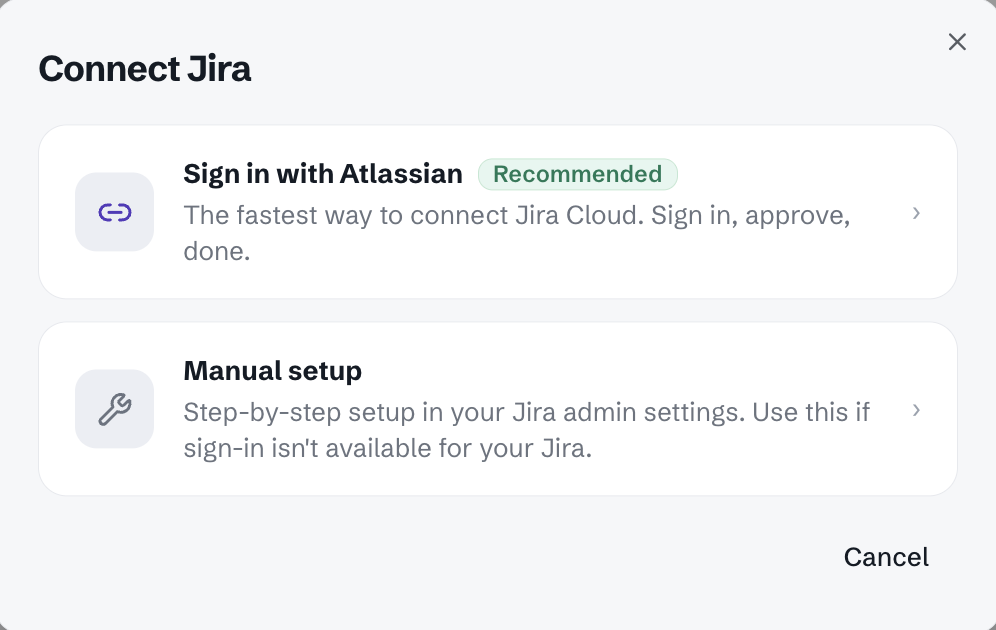
Manual setup
In the Connect Jira dialog, select Manual setup.
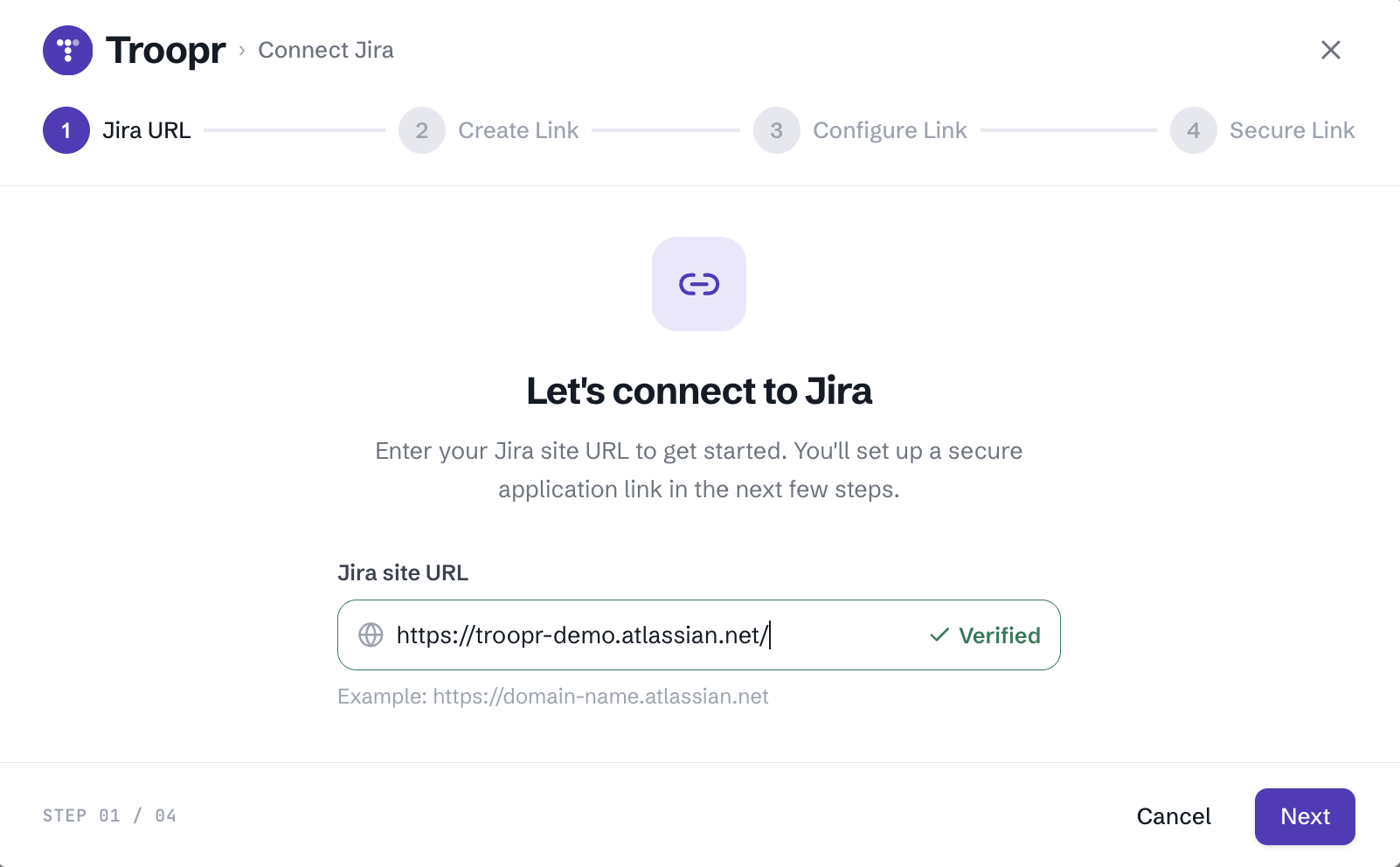
Enter your Jira domain and click Next.
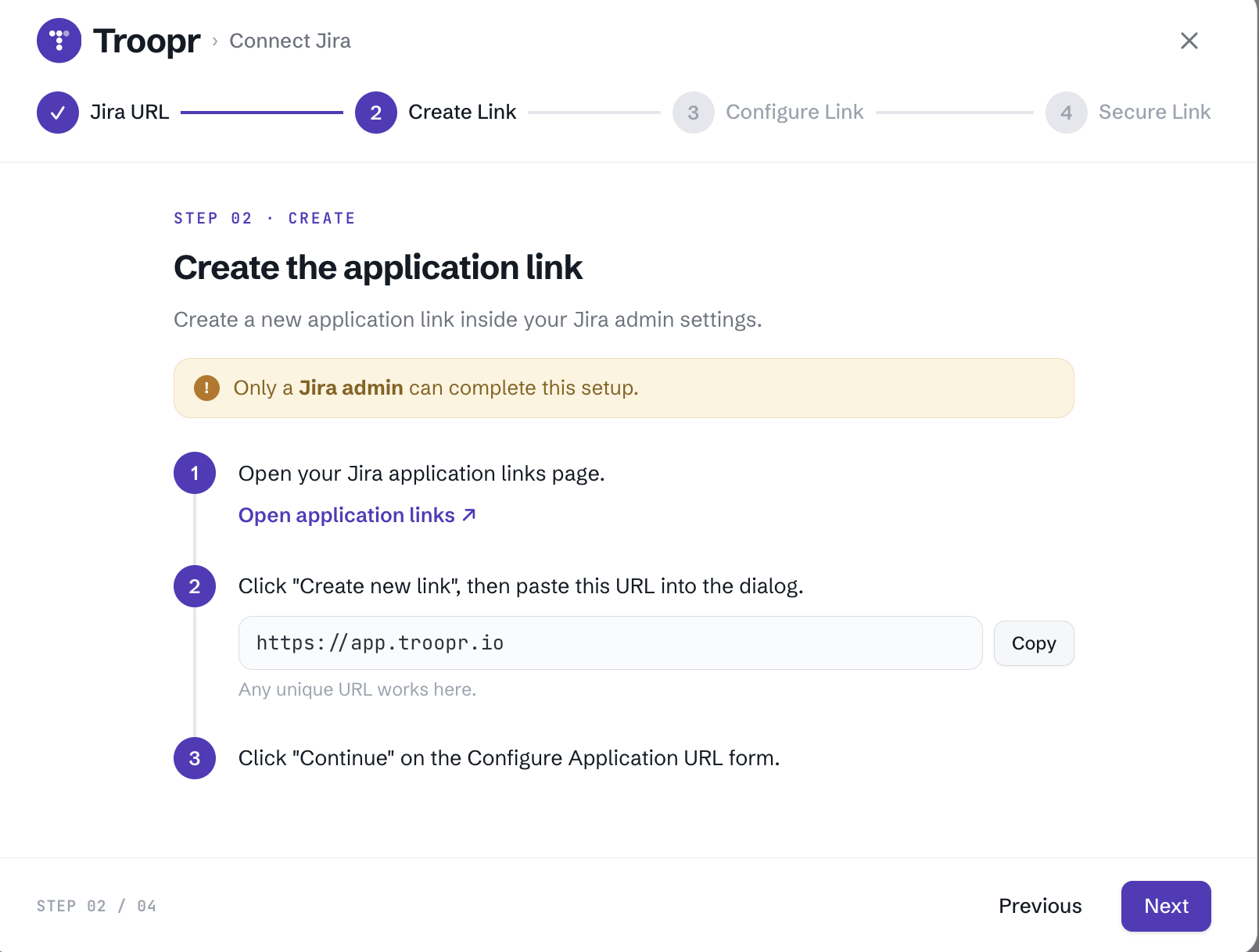
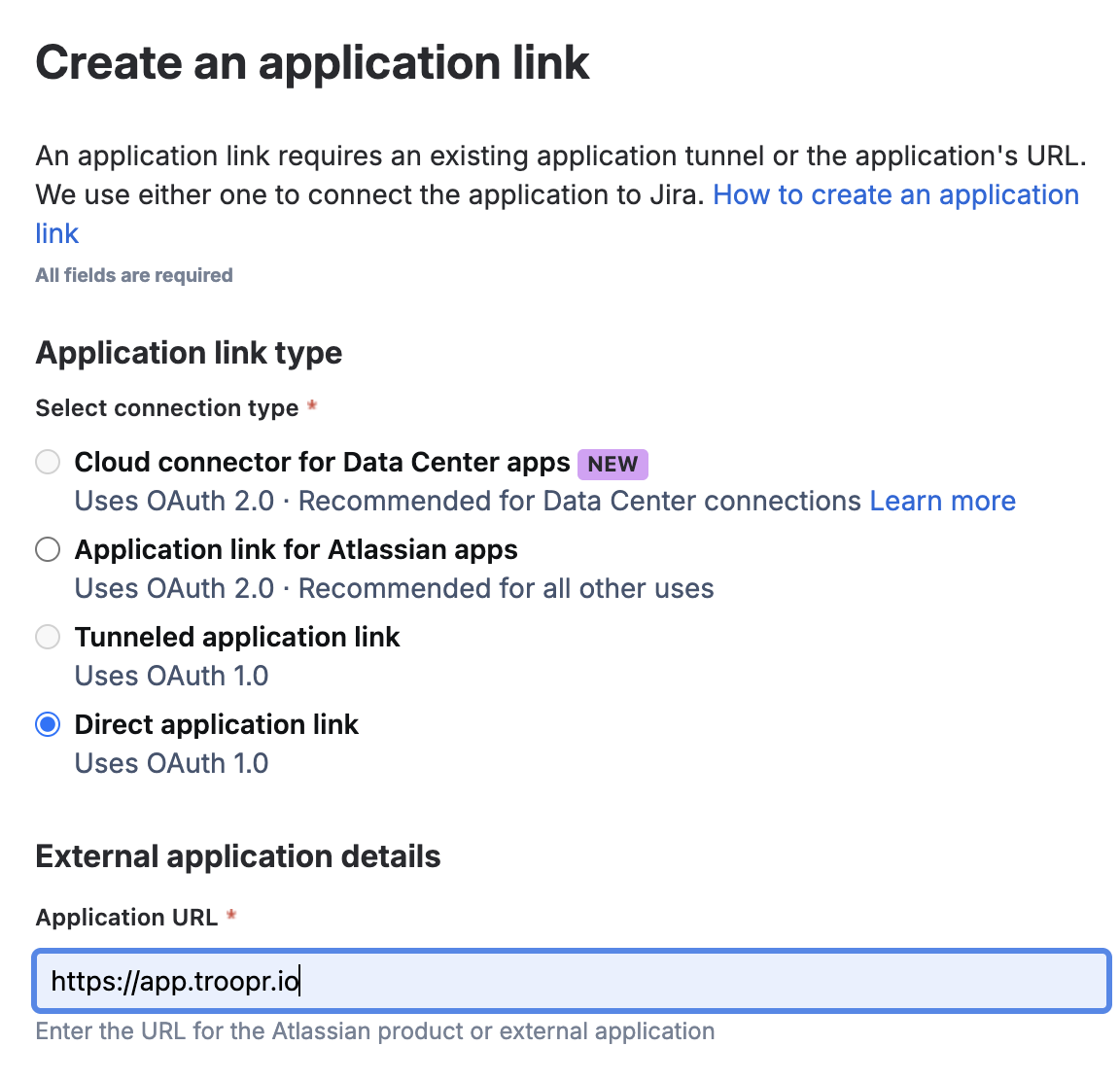
Create a Jira Application Link from your domain to
https://app.troopr.ioand click Next.
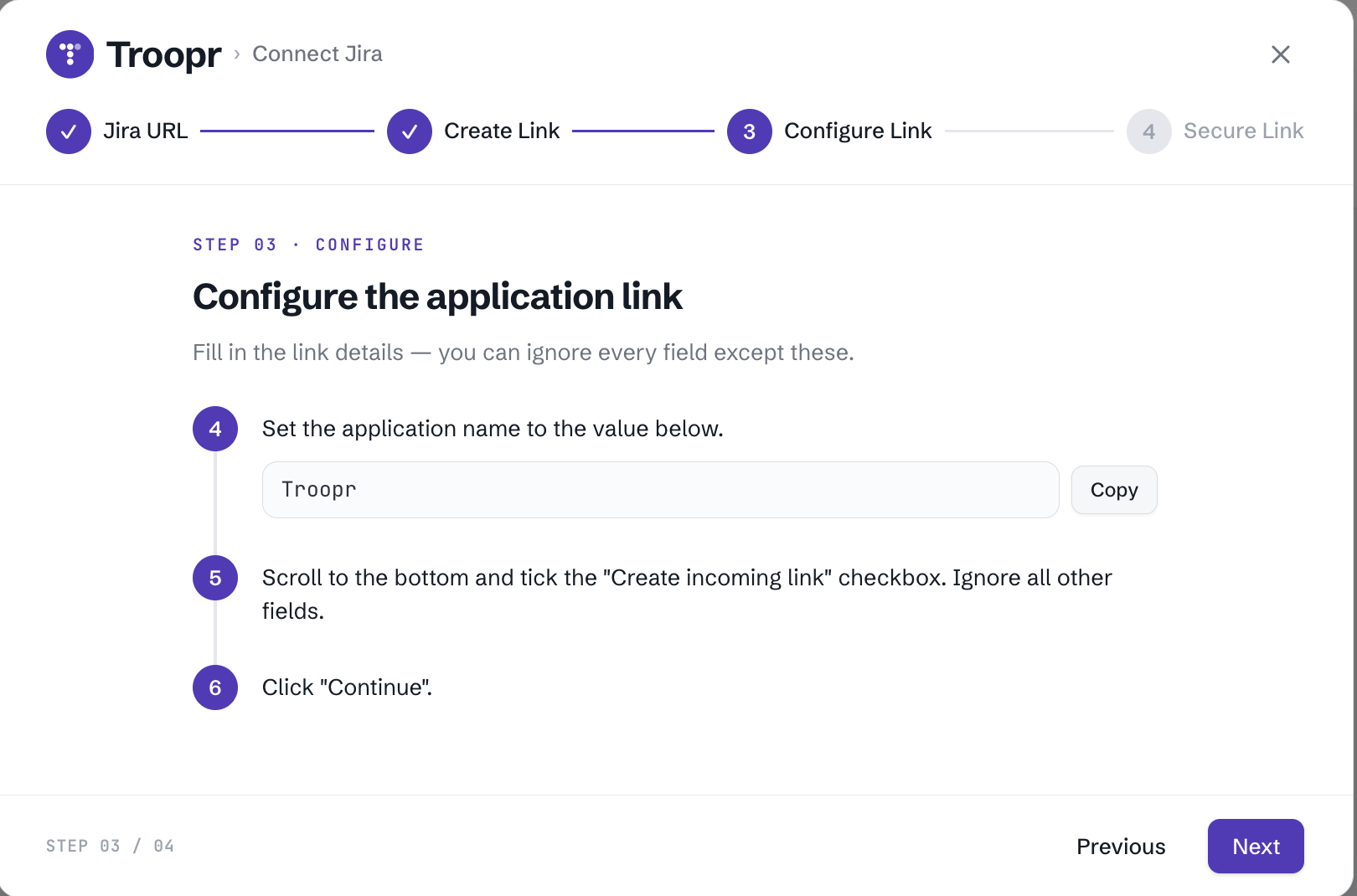
Configure the created Application Link with the values shown on screen and click Next.
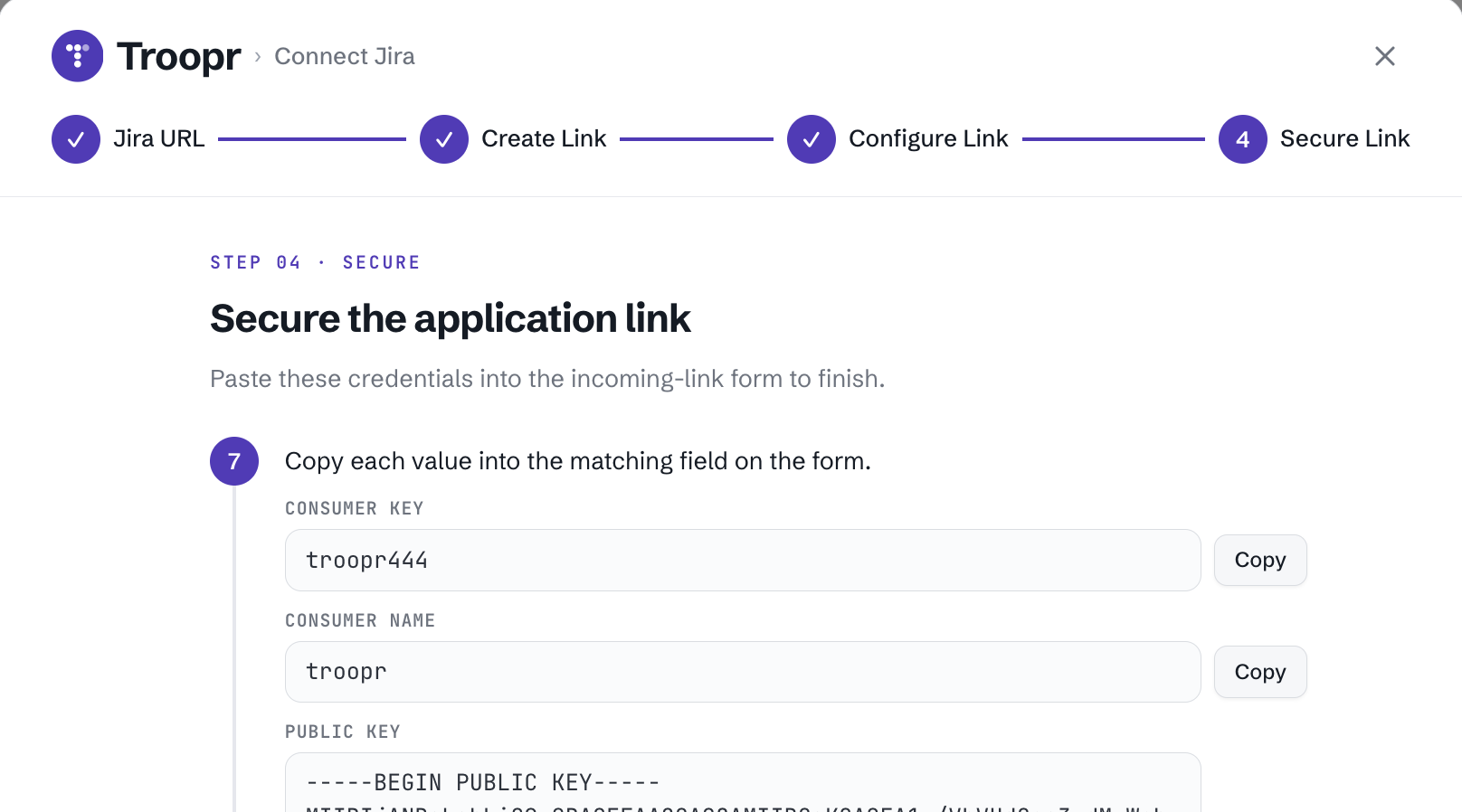
Secure the Application Link by entering the consumer key and shared secret provided by Troopr, then click Connect.
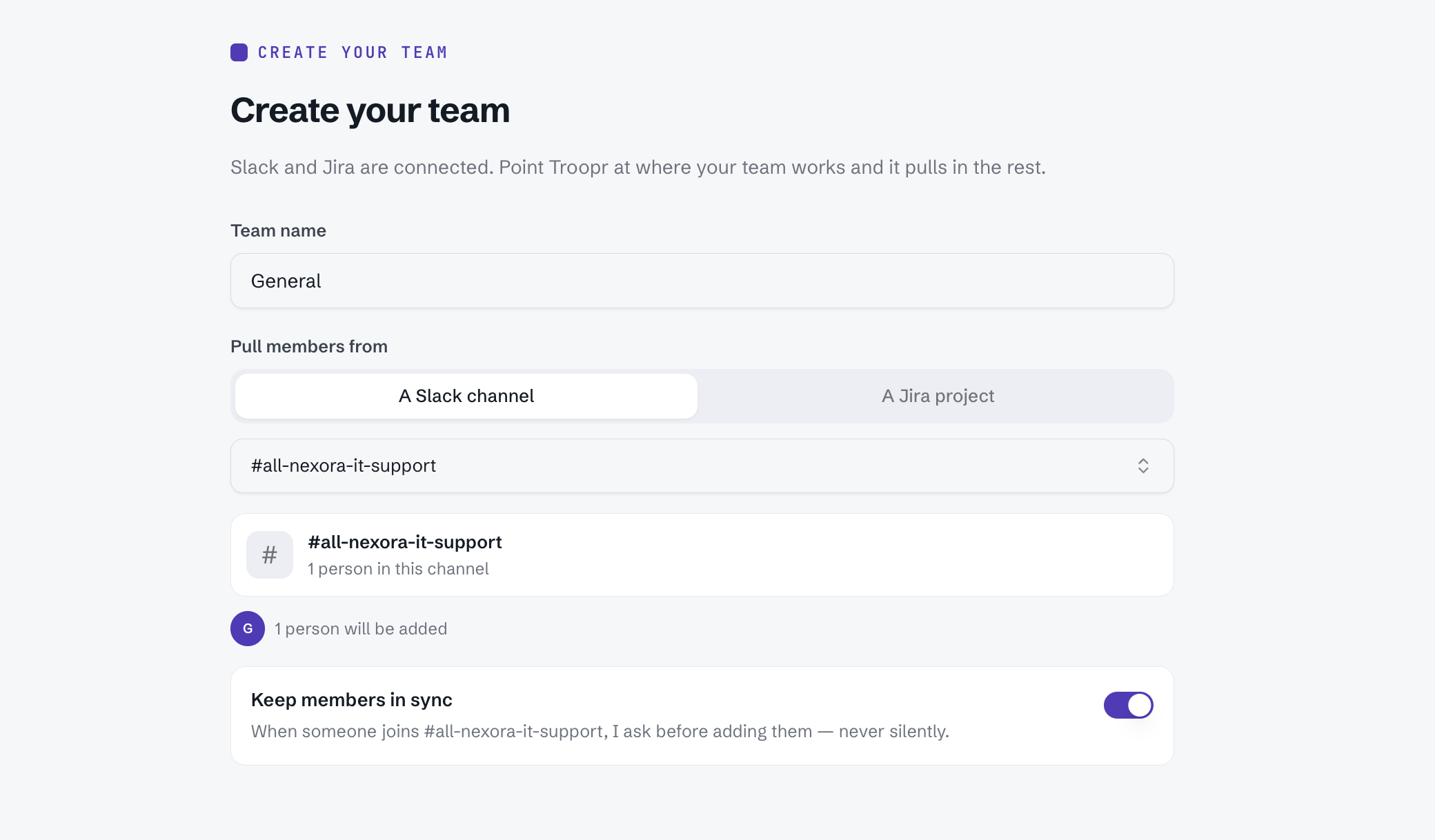
Set up a Slack channel to sync your users from
Select project channel by selecting the jira project, default issue type.
Your jira is connected and demo project channel is also created in Slack.