
Manually Triggered Check-ins
While Troopr Check-ins are typically scheduled to run automatically, there are times when you may need to collect updates outside of the standard schedule. You can manually trigger a check-in for your entire team or target specific team members who need to provide an update immediately.
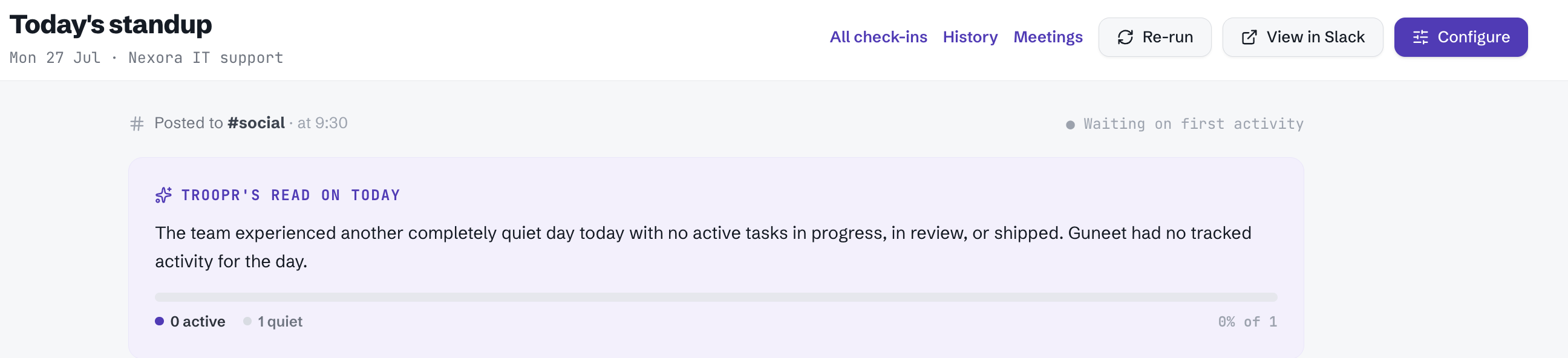
Triggering a Check-in for the Whole Team
If you need an unscheduled pulse check from everyone in the check-in group, you can initiate a manual trigger for the entire team. This will send the check-in prompt to all active participants simultaneously.
Navigate to the Check-ins section in the Troopr web app or via the Slack interface.
Select the specific check-in configuration you wish to run.
Locate the Run Now or Trigger Manually option.
Confirm the action to send the prompt to all team members.
Triggering a Check-in for Individual Members
You can also trigger a check-in for specific individuals without disturbing the rest of the team. This is useful for onboarding new members, catching up with someone who missed a previous cycle, or requesting a one-off update.
Open the Check-in settings for your team.
Go to the Participants or Manage Members tab.
Find the specific team member you want to prompt.
Click the Trigger Check-in icon (often represented by a lightning bolt or a 'Run' button) next to their name.
Troopr will immediately send the check-in questions to that individual via Slack.

Important Considerations
Duplicate Prompts: If a manual trigger is sent close to a scheduled check-in, the user may receive two prompts. It is best to use manual triggers when there is a significant gap before the next scheduled event.
Reporting: Responses collected via manual triggers are aggregated into the same reports as scheduled check-ins, ensuring your data remains centralized.
Permissions: Typically, only Workspace Administrators or Team Admin have the permissions required to manually trigger prompts for other users.