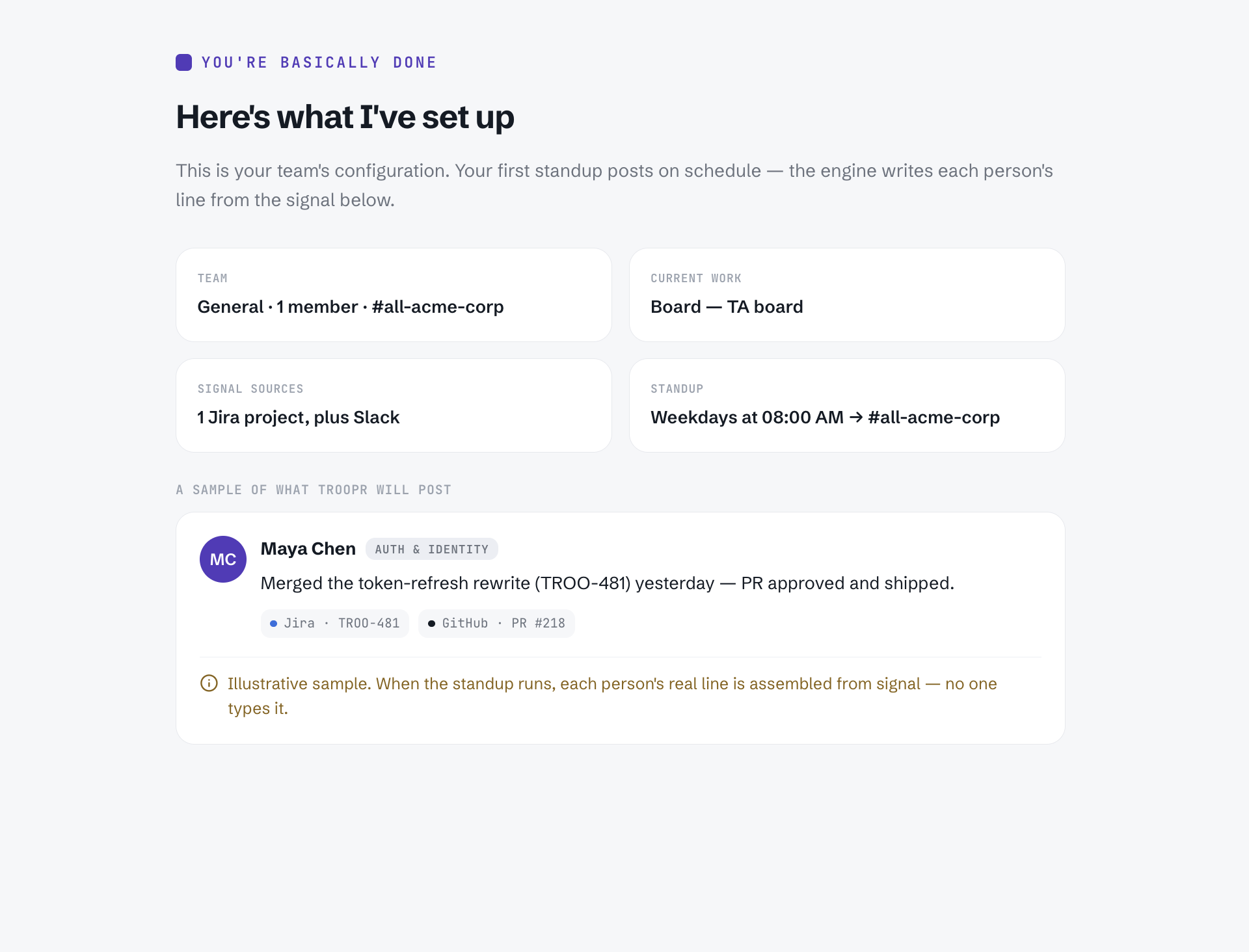
Get Started
Overview
Troopr is an AI-native coordination tool for engineering teams that works inside Slack. It reads your team's activity in Jira, GitHub, and Slack, forms its own view of what is happening, and drafts the coordination work for a person to approve.
Benefits for your team
Each person's standup update is drafted from their actual activity, so the posted status reflects recorded work rather than a manual summary.
Troopr joins your standup call on Google Meet and produces a report grounded in your team's history and current Jira and GitHub state, surfacing items that may need attention.
Troopr keeps a memory of how your team works that you can view, correct, and delete. Every proposed Jira change is routed to the person it concerns for confirmation before it is written.
Engineering Managers can see what the team is working on and what needs attention without asking anyone for a status update.
This guide will walk you through the six essential steps to get your workspace up and running, ensuring your team can manage projects and automate workflows directly from Slack.
Step 1: Install Troopr
To begin, you need to add Troopr to your collaboration platform. Navigate to the Troopr website or your platform's app marketplace (such as the Slack App Directory) and select the option to install. You will be prompted to grant the necessary permissions for Troopr to interact with your channels and messages.
Step 2: Log in to your account
Troopr uses an account-first authentication model to ensure your data remains secure and accessible across different platforms. When you first access the web dashboard or configuration settings, you will be asked to log in using one of the following methods:
Email OTP: Enter your work email address to receive a one-time password (OTP). Enter the code provided in your email to verify your identity.
Google SSO: If your organization uses Google Workspace, you can log in instantly using your Google credentials.
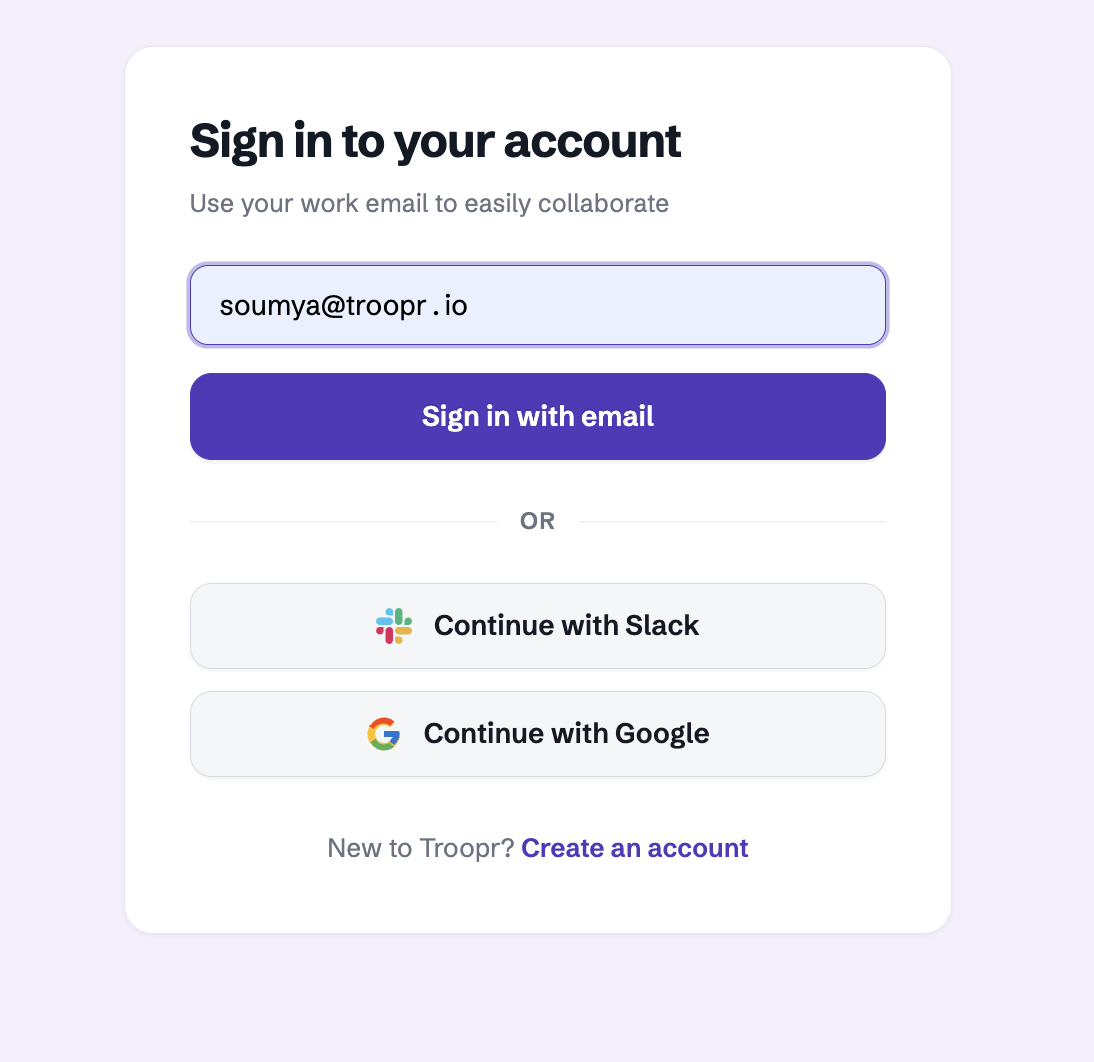
This centralized login ensures that your preferences and configurations are tied to your professional identity, regardless of which Slack or Microsoft Teams workspace you are currently using.
Step 3: Connect Slack
The first step is to integrate Troopr with your Slack workspace. This allows Troopr to facilitate communication between your team and your project management tools. Follow the on-screen prompts to authorize Troopr and add it to your desired Slack channels.
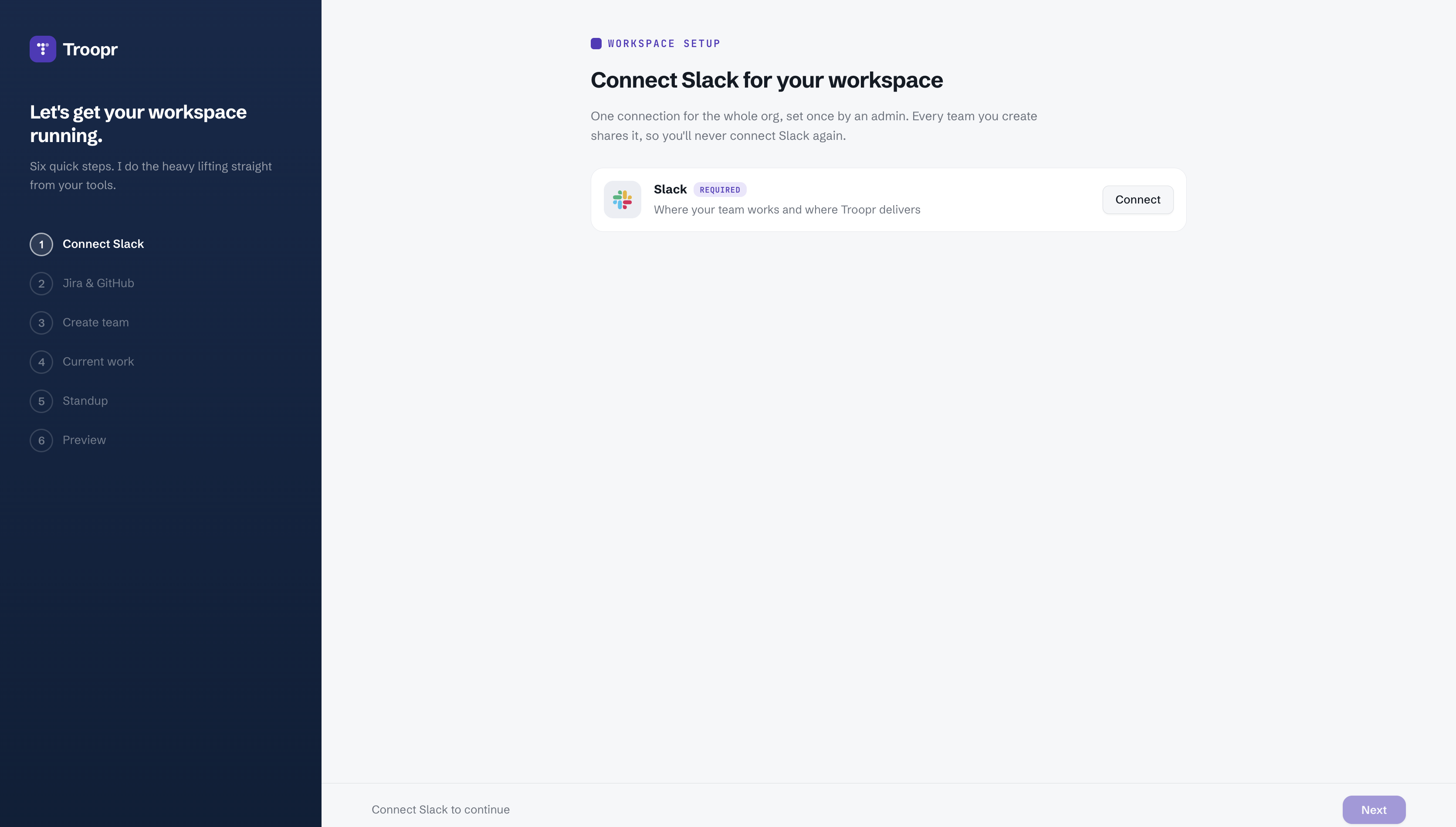
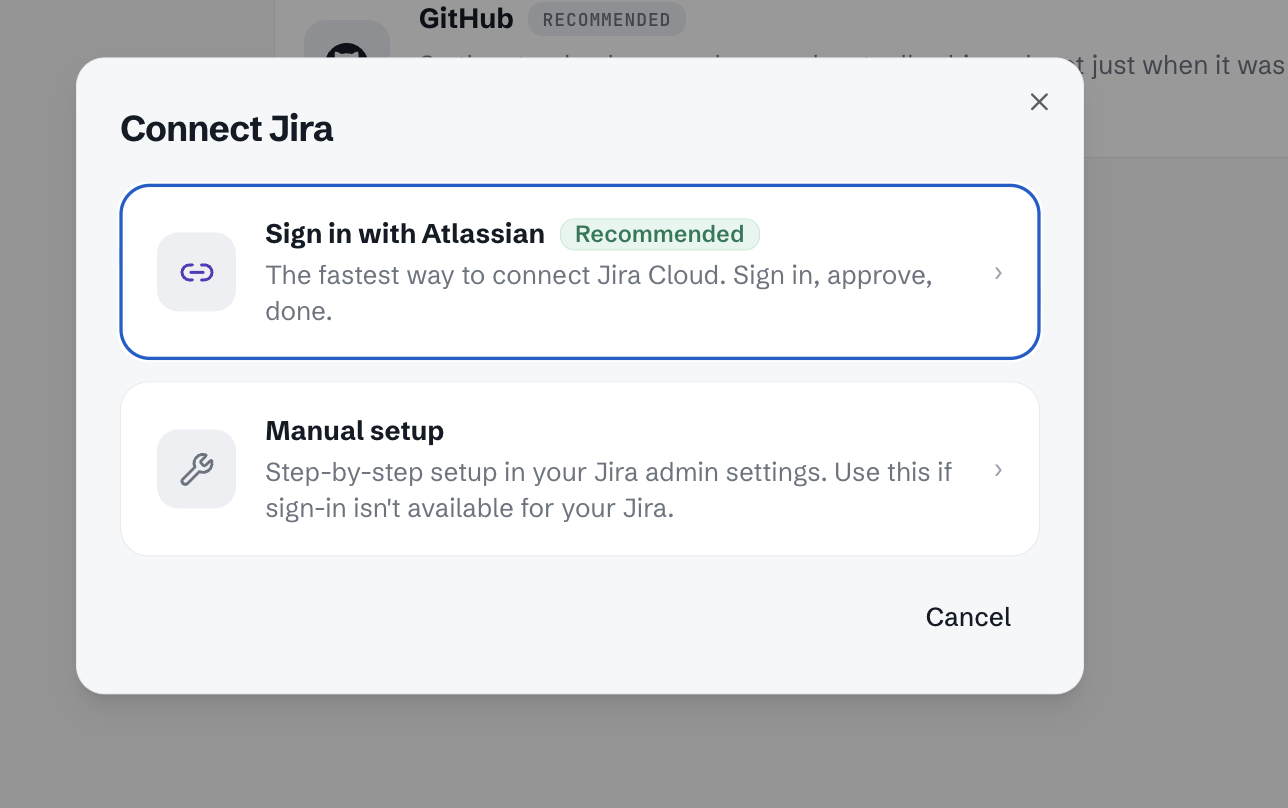
Step 4 : Connect Jira
To manage your tasks, you need to link your Jira instance. Navigate to the integration settings and provide your Jira URL and credentials. This connection enables Troopr to unfurl issue links, create tickets, and sync updates in real-time.
Step 5: Connect GitHub
Link your GitHub account to bring development context into your conversations. By connecting GitHub, you can track pull requests and repository activity alongside your Jira issues within Slack.
Step 6 : Create your team
Defining your team is a critical step in telling Troopr where your work lives. This configuration ensures that the right data is surfaced to the right people.\
To set up your team:
Select Jira Project: Choose the specific project that this team primarily works on.
Define Current Work: Specify how Troopr should identify active tasks. You can select an Active sprint, a specific Board, or use a custom JQL filter to pull in relevant issues.

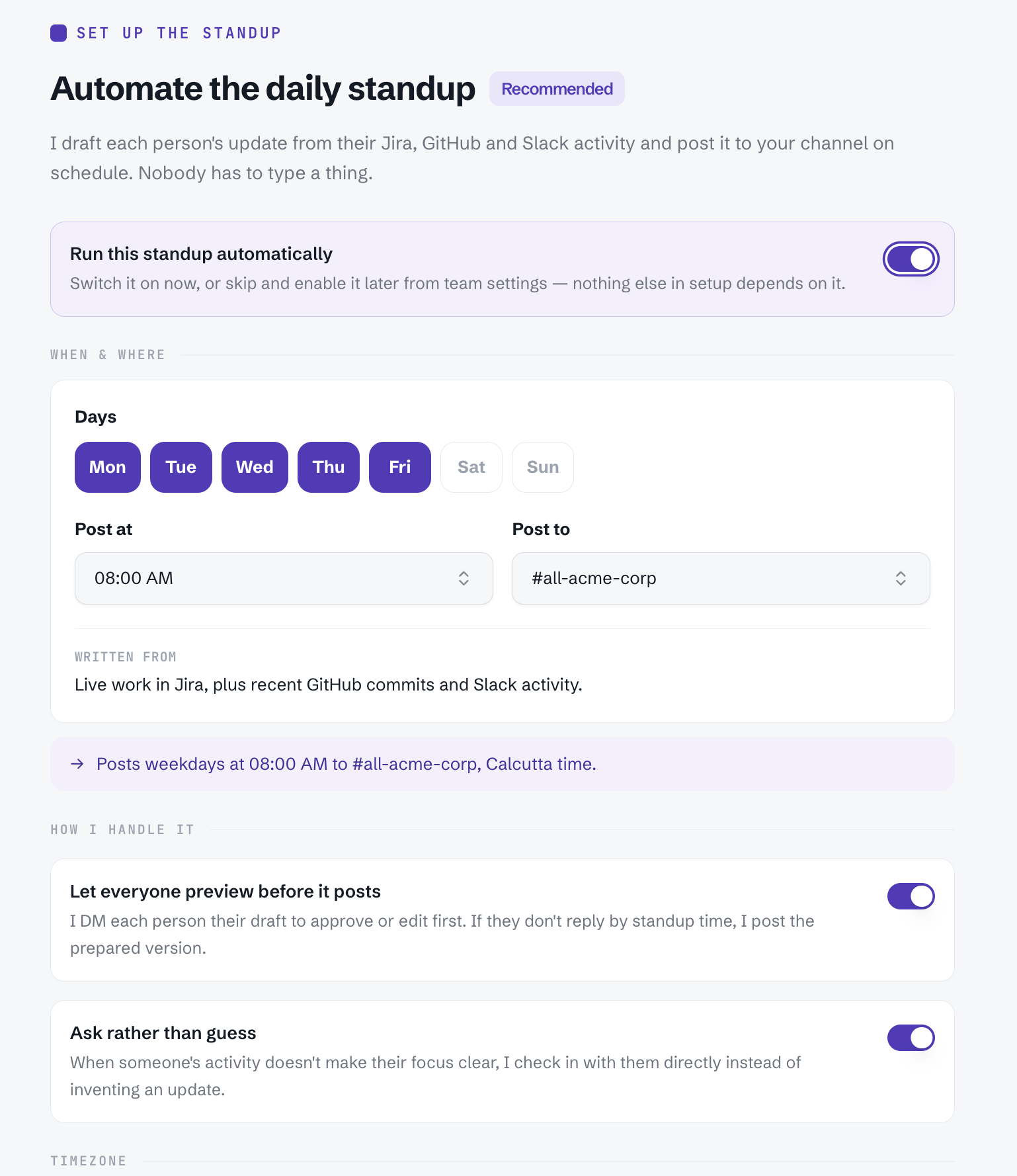
Step 7 : Automate the daily standup
Once your team and project are defined, you can set up a Check-in to automate your daily standup. Configure the time, frequency, and the specific questions you want your team to answer. Troopr will automatically prompt team members in Slack and aggregate the responses into a summary report.
Step 8 : Review configuration
Finally, review your workspace settings. Ensure that notification preferences are set correctly and that all team members have been invited to the relevant Slack channels. You are now ready to start managing your projects more efficiently with Troopr.