
Team Switcher
Troopr always knows which Team you're working in. If you belong to more than one Team, the switcher lets you move between them without losing context.
How the switcher appears
If you belong to a single Team, you see a simple team label in the web app — no switcher needed.
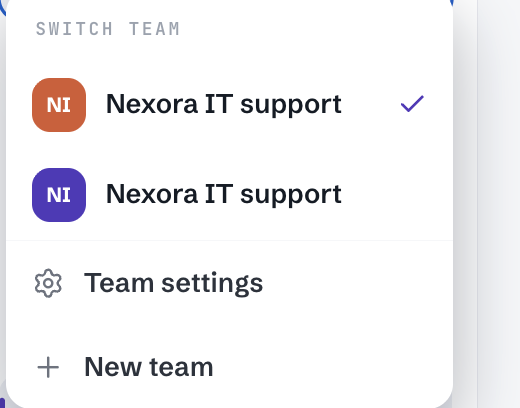
If you belong to multiple Teams, a team switcher appears, letting you pick which Team's data you're viewing or configuring.
The web app always displays which Team you're currently in, so you never lose track of context while configuring settings or reviewing history.
How Team defaults are used
The Slack channel, Jira project, and GitHub repo you choose when creating a Team become its defaults, and Troopr applies them automatically across features:
Standup and report delivery post to the Team's default Slack channel unless you configure otherwise.
Notifications route to the same default channel.
The issue project used when turning Slack messages into Jira issues defaults to the Team's Jira project.
[!TIP]
You can override a default for a specific report or notification without changing the Team's overall default — for example, scheduling one report to a private channel while standups still post to the team channel.
[!NOTE]
Managers overseeing several Teams use the switcher to configure each Team independently. Settings in one Team never affect another.
What's Next
Create a Team — Set up a new Team and its defaults from scratch.
What Is a Team in Troopr? — Get the full picture of what a Team owns and how billing works