
How to Create a team in Troopr ?
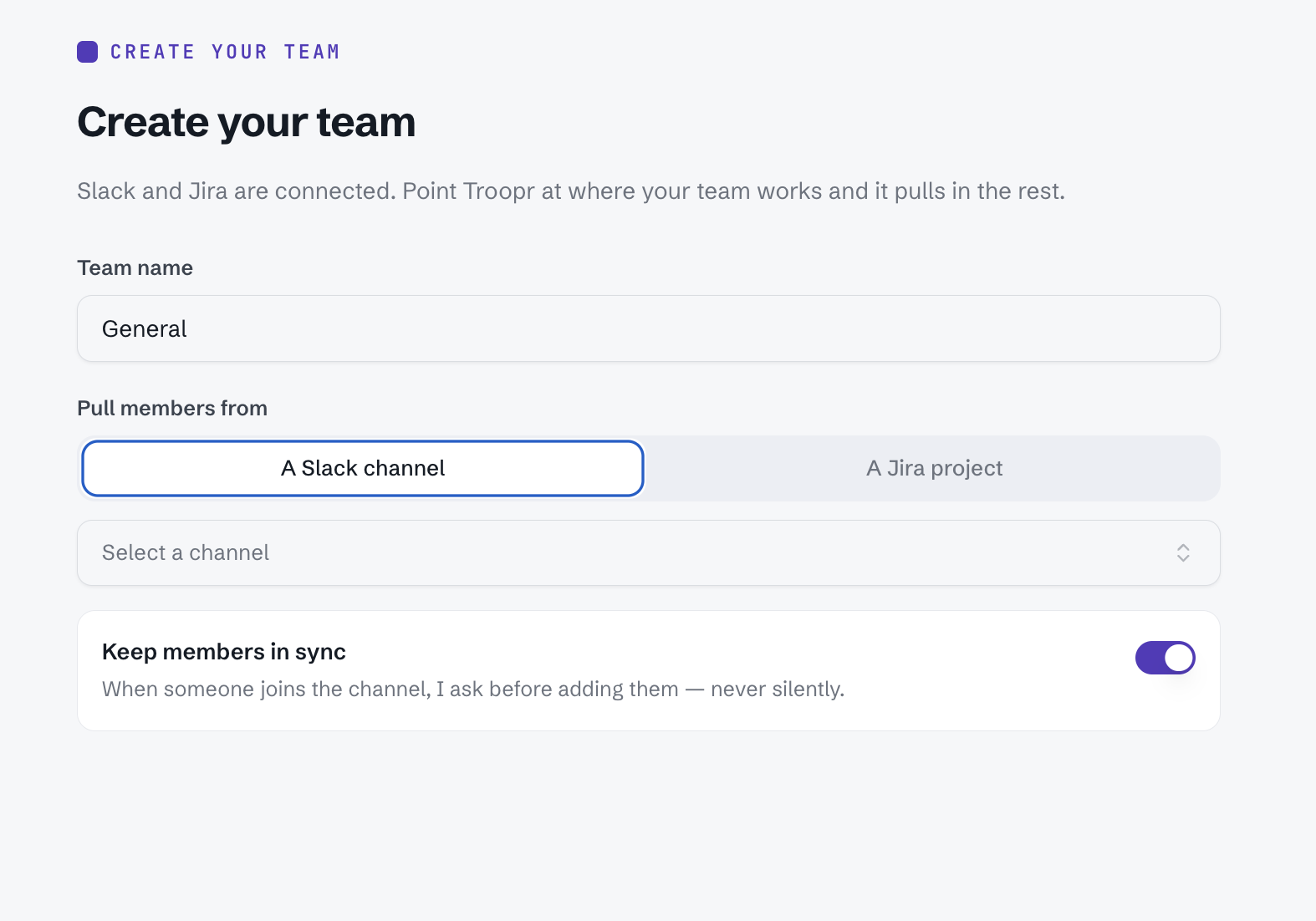
Creating a Team is self-serve: point Troopr at a Slack channel or a Jira project, and Troopr pulls the roster and sets your defaults automatically.
[!NOTE]
Prerequisite: Your workspace must already have Slack connected. A Jira connection helps but isn't required to start — you can add it during Team creation.
Steps to create a Team
Open the Troopr web app and select Create a team.
Choose how to start the Team: point at a Slack channel or point at a Jira project.
If you start from a Slack channel, Troopr pulls the channel's members as the initial roster. If you start from a Jira project, Troopr pulls people active on that project instead.
Review the roster Troopr proposes. You'll be asked to confirm before anyone new is added — Troopr never adds members silently.
Confirm the default Slack channel, Jira project, and (optionally) GitHub repo. These become the Team's defaults for standups, reports, notifications, and the default issue project.
Select Create team. You become the Team's manager by default.
[!TIP]
You can add more Jira projects or GitHub repos to a Team after creation — you don't need everything set up on day one.
Roster sync after creation
Once created, the roster stays in sync with the source channel or project. If someone joins the Slack channel or starts working in the connected Jira project, Troopr will propose adding them and ask for confirmation first.
[!WARNING]
Removing someone from the source channel or project doesn't automatically remove them from the Team roster. Manage roster removals directly in the Team settings.
What's Next
What Is a Team in Troopr? — Understand what a Team owns and how it's scoped.
Team Switcher and Defaults — Learn how the defaults you just set are used across Troo