
Get started with Troopr in Microsoft Teams
Troopr writes your team's daily standup in Microsoft Teams. It drafts each person's update from their Jira and code activity and the team's channel conversation, sends it to them in a 1:1 chat to check, and posts the team's standup to your channel on schedule.
Setup takes about 15 minutes: add Troopr to a team in Teams, finish setup on the web, set up your standup, and run your first one. Signing up is free.
In Teams, Troopr runs the Automated Standup. Jira project channels, Jira reports, retrospectives, planning poker and team mood are available in Slack only for now.
What you need
Item | Detail |
|---|---|
A Microsoft 365 work or school account with Teams | You sign up for Troopr and connect Teams with it. Personal Microsoft accounts can't connect Teams. |
Permission to add apps to a team | Usually the team owner. If your organization limits apps, a Teams admin may need to allow Troopr first. |
A team with a standard channel | Troopr posts the standup there. Everyone in the team can get a draft. |
Jira | Required. Jira Cloud, Server or Data Center. Troopr reads each person's issues to write their draft. |
GitHub or GitLab | Optional. Adds commits and pull or merge requests to each draft. |
A browser | For sign-up and setup at app.troopr.io. |
There is nothing to install on your computer.
Step 1: Add Troopr to a team
Start in Microsoft Teams. Adding Troopr to a team is what lets it post your standup and message each person.
In Teams, select Apps and search for Troopr.
Select Troopr, then Add.
On Added successfully!, use Or choose a place to use the app to pick the channel you want standups in. Choosing a channel is what puts Troopr in that team.
Teams lists the two team permissions Troopr needs: reading that team's channel conversation and its channel names. Approving them is part of adding the app.
Troopr then posts a short message in the team with a finish setup link. Keep it for the next step.
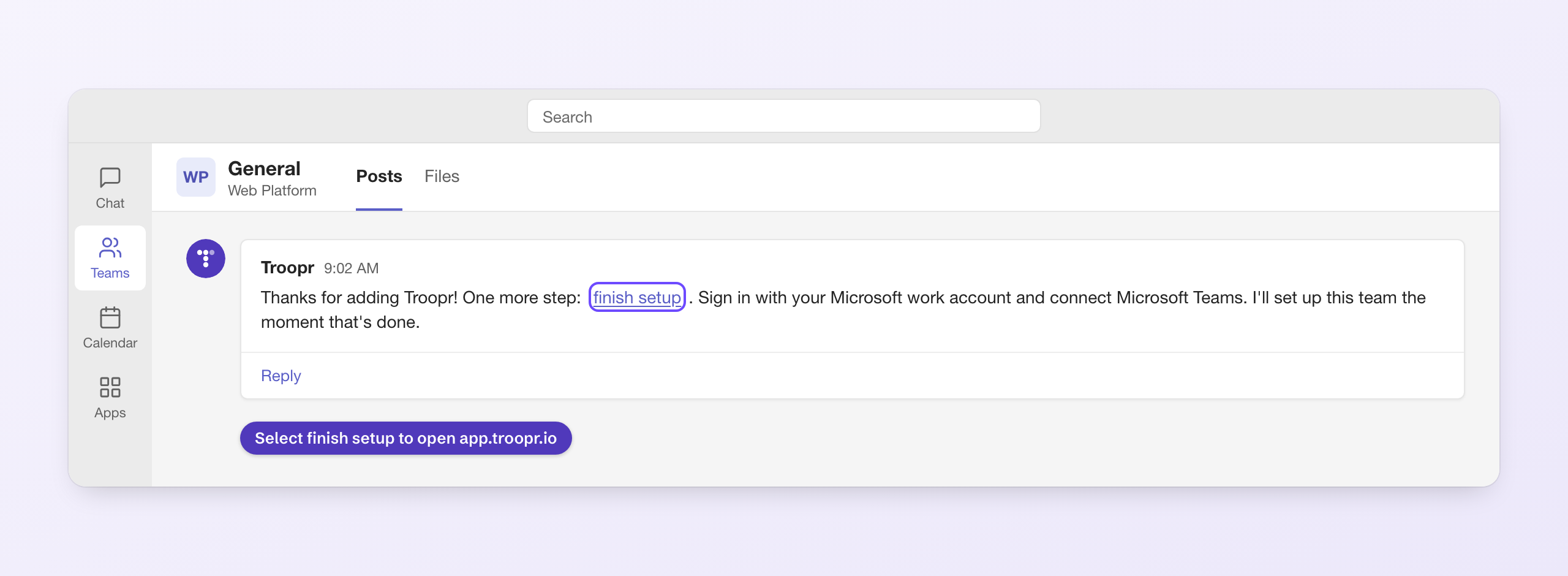
If you select Add and then Open without choosing a channel, Troopr is added for you only, as a personal app, and has nowhere to post. Add it again and pick a channel. For each further team, repeat steps 2 and 3.
Step 2: Finish setup on the web
This is the only part of setup outside Teams, and you do it once.
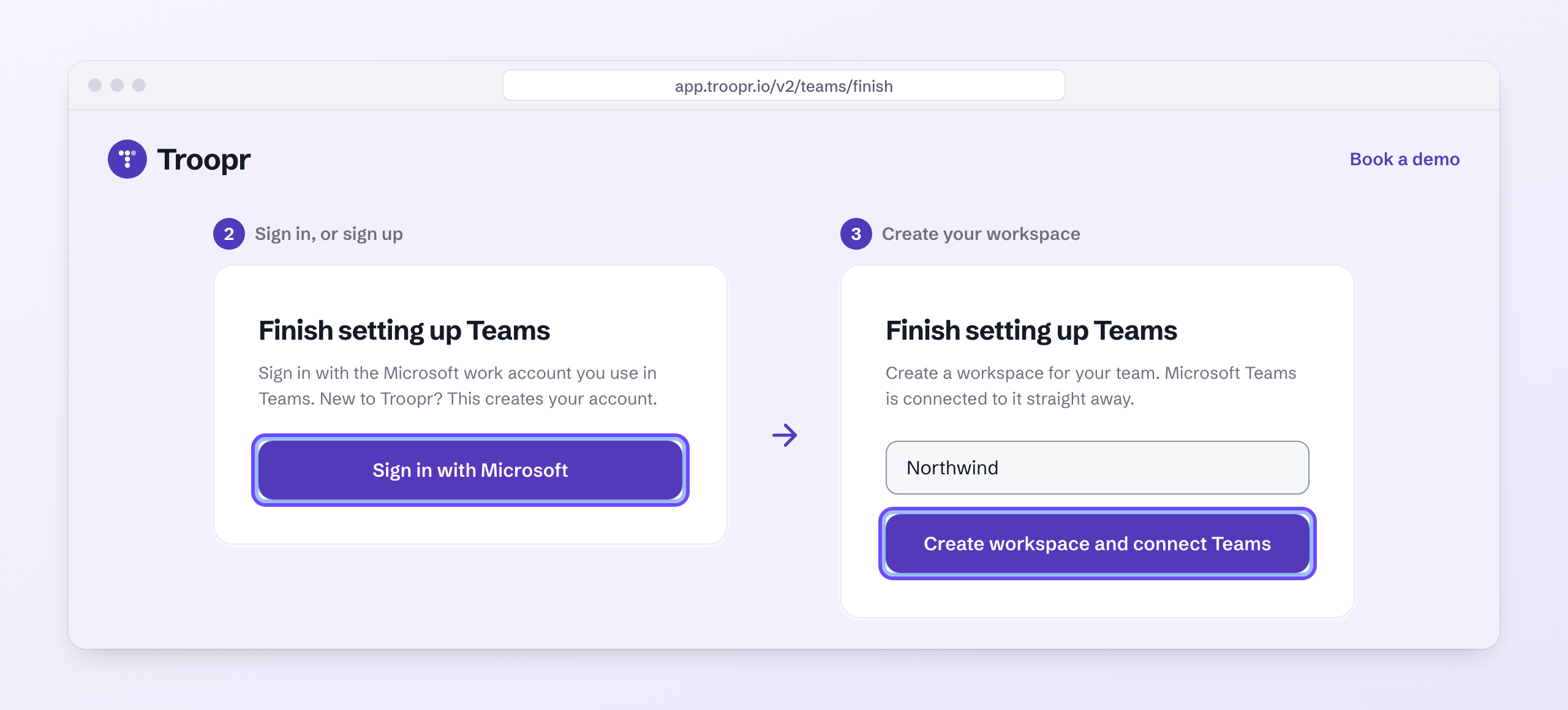
In Troopr's message, select finish setup. It opens app.troopr.io.
Select Sign in with Microsoft and use the work account you use in Teams. New to Troopr? This creates your account.
Name your workspace and select Create workspace and connect Teams. If you already have a Troopr workspace, pick it instead.
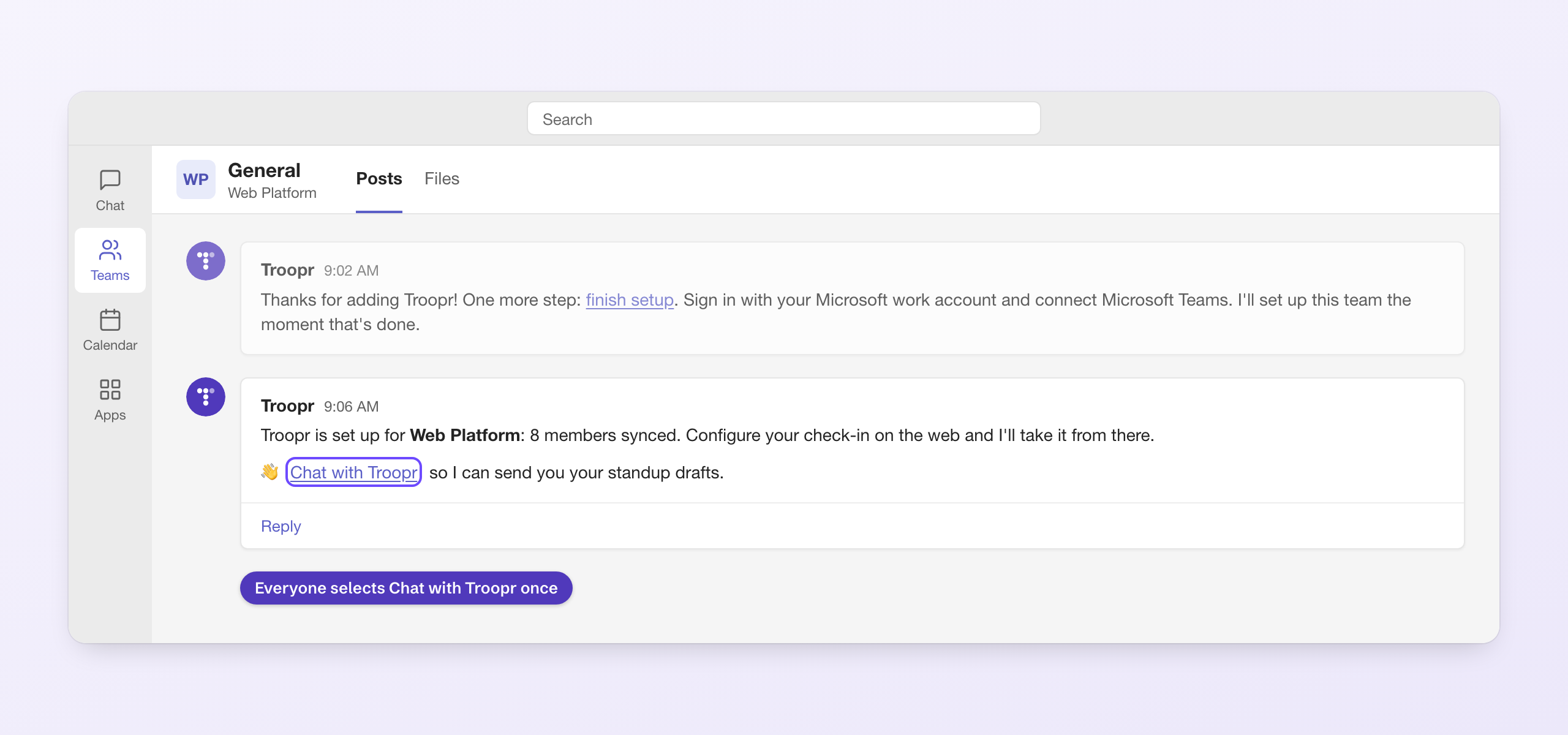
Back in Teams, Troopr posts that it is set up for your team and how many members it synced, with a Chat with Troopr link. Ask everyone to select it once, so Troopr can send them their drafts.
Step 3: Set up your standup
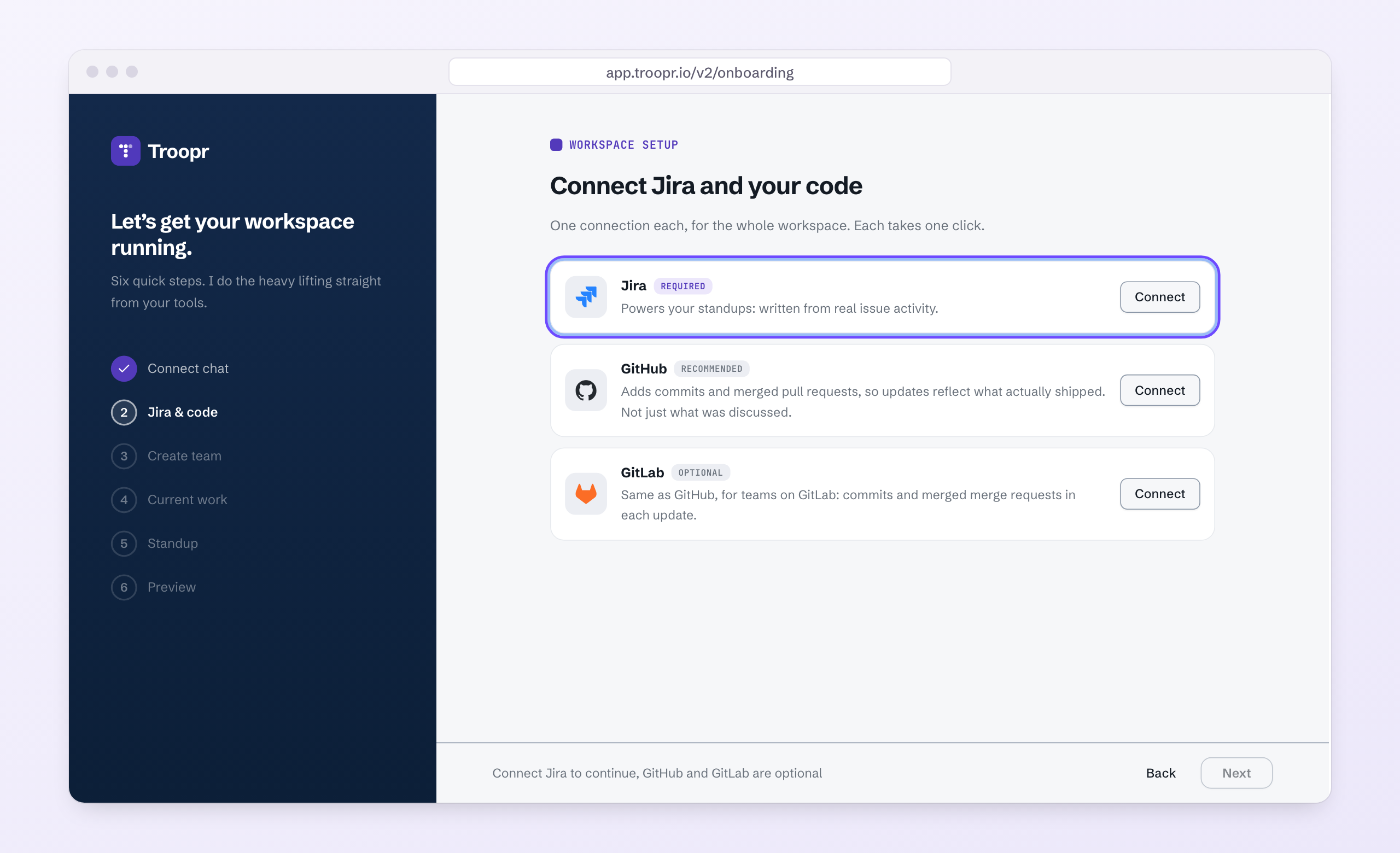
After you connect, Troopr opens a short setup. Microsoft Teams is already connected, so you start at Jira. You can change all of it later.
Setup step | What you do |
|---|---|
Jira & code | Connect Jira. GitHub and GitLab are optional. |
Create team | Name the team. Under Pull members from, choose A Teams channel and pick the team's channel. Its members become the team. |
Current work | Pick the Jira project and what counts as current work: the active sprint, a board or a JQL filter. |
Standup | Choose the days, time and time zone, and whether people check their draft before it posts. |
Preview | Check the summary and select Looks great, finish setup. |
Step 4: Run your first standup
You don't have to wait for the schedule to see Troopr work.
On your team's Home, under Getting started, select Run your first standup.
Select Run it now.
Each person gets their draft in a 1:1 chat with Troopr, and the team's standup posts to your channel.
From then on, standups run on your schedule. Everything people do day to day happens in Teams.
Prefer to start on the web?
Go to app.troopr.io/signup, select Sign up with Microsoft and create a workspace. On Connect your chat tool, select Connect beside Microsoft Teams, then Sign in with Microsoft under From the Teams Store. Then add Troopr to a team as in Step 1, and carry on with Step 3.
How standups work in Teams
Each person checks their own draft in a 1:1 chat with Troopr. The team's standup posts to the channel at the time you set.
Where | What appears | What people do |
|---|---|---|
1:1 chat with Troopr | Their draft, written from their Jira and code activity and the channel conversation | Reply in plain words to change it, for example "also fixed the login bug". Reply "skip me today" to leave yourself out. |
1:1 chat, 15 minutes before posting | A last-call reminder, if they haven't replied | Reply before the standup posts. |
The team's channel | A new post each day: how many people reported, a short summary of the day, and counts of what shipped, what is ready to deploy and what is in progress, with a link to the full report | Read it, and reply to discuss. |
The thread under that post | One reply per person with their update | A reply sent to Troopr after posting updates that person's entry in place. |
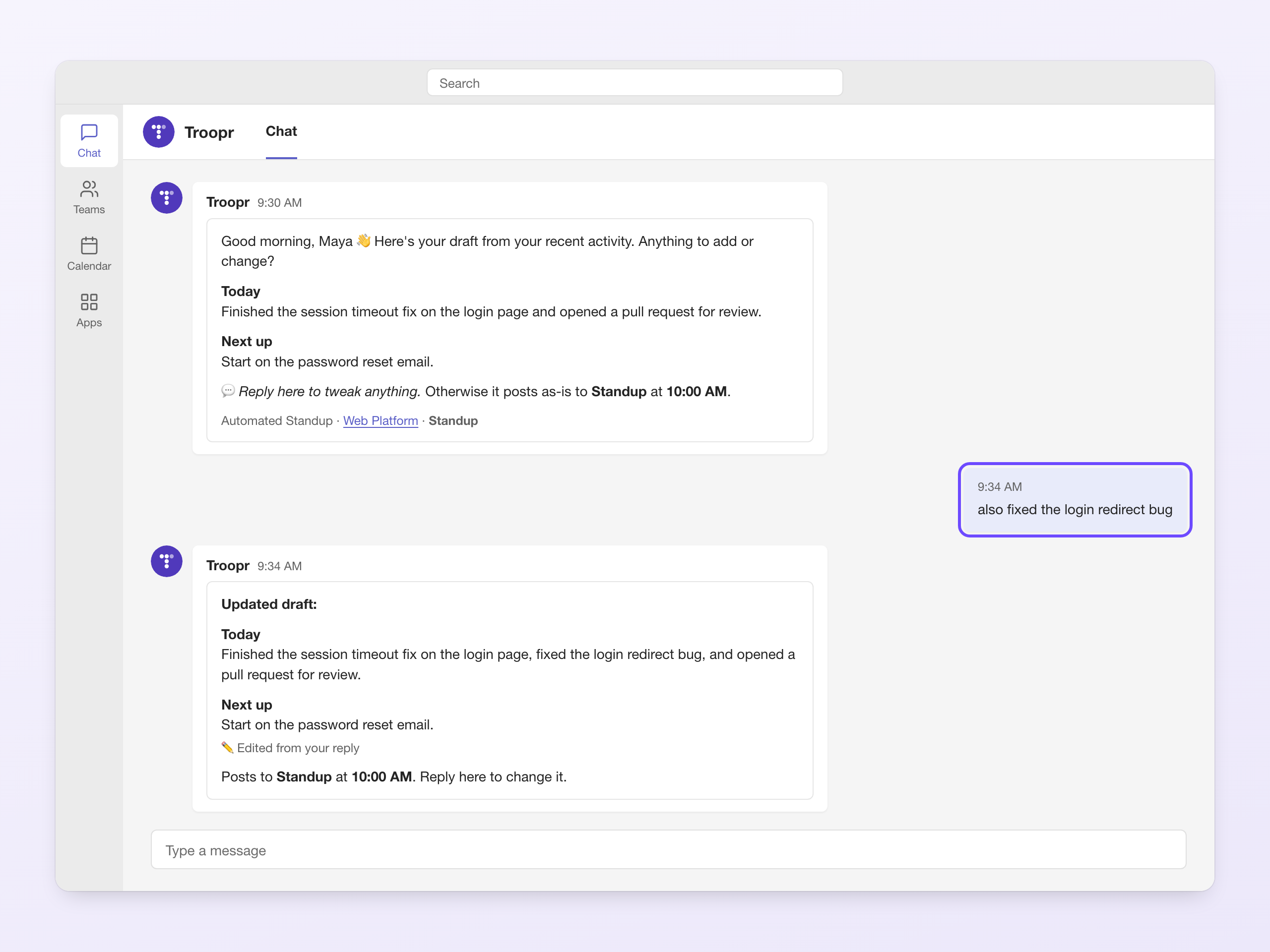
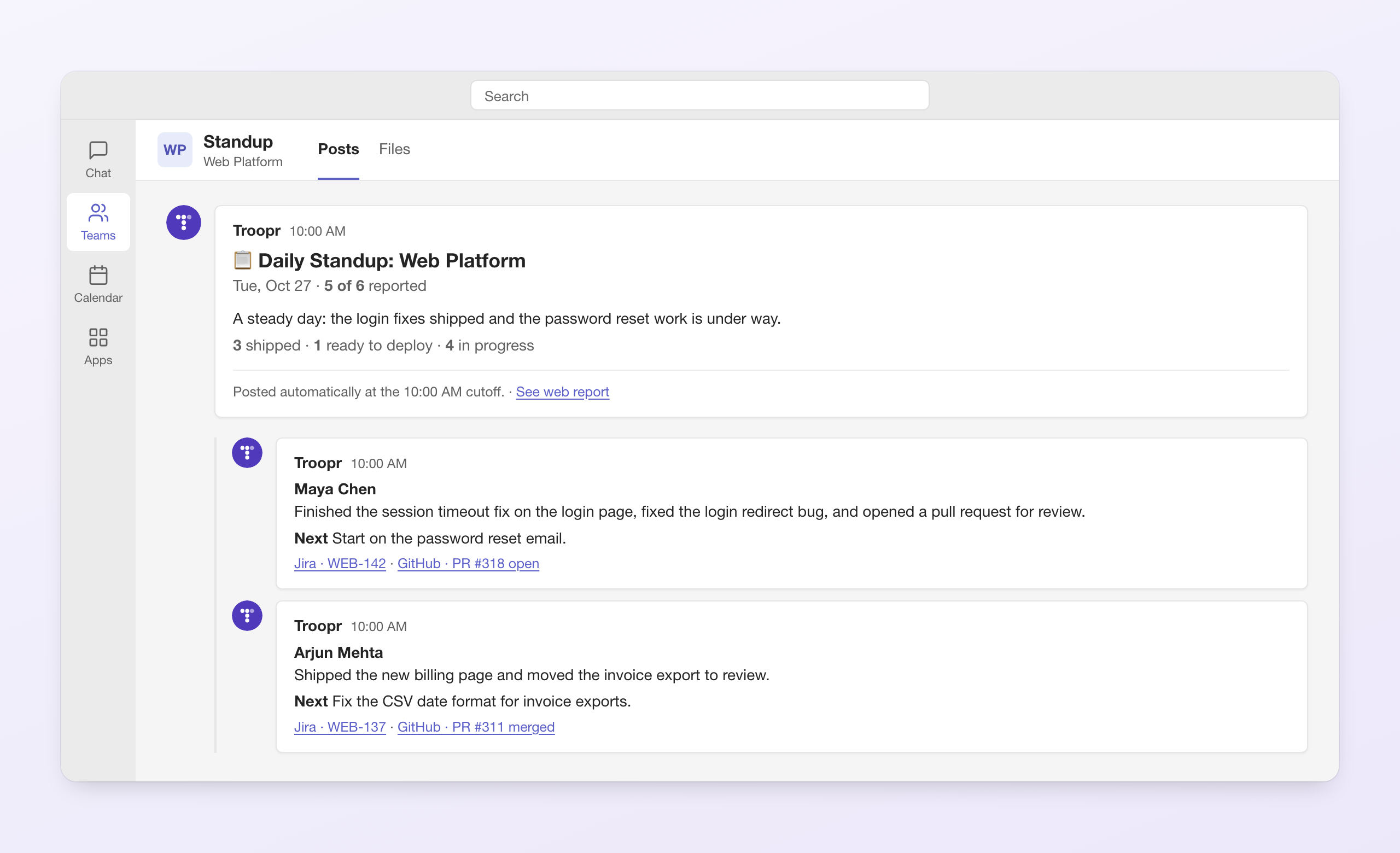
Drafts are written with AI. Each person can check and correct their own draft before it posts.
Good to know
Standard channels only. Private channels, shared channels and group chats aren't supported.
One Troopr team, one channel. For several teams, add Troopr to each team in Teams and create a Troopr team for each.
One time zone per standup. Each standup runs in the time zone set in its settings, not in each person's own.
Guests aren't included. Troopr syncs the team's members, not its guests.
People who join later are added to Troopr as suggested members. A workspace admin activates them under Workspace → People.
Removing someone from the team in Teams doesn't remove them from Troopr. Switch them off in Team members in the standup, in the standup's settings.
Government clouds (GCC, GCC High and DoD) aren't supported.
Pause, stop or remove Troopr
Leave yourself out of today's standup: reply "skip me today" in your chat with Troopr. If the standup has already posted, Troopr removes your update from the channel thread.
Leave someone out for good: in Troopr, open Check-ins and select Configure. Switch them off in Team members in the standup.
Pause a team's standup: in Check-ins → Configure, switch the standup to Paused. Nothing posts and no one gets a message until you resume.
Remove Troopr from a team: in Teams, open the team's Manage team → Apps and remove Troopr. It stops posting and messaging in that team. Standups it already posted stay in the channel.
Disconnect your organization or delete your data: write to success@troopr.ai.
Use your own Teams app (optional)
Some organizations run Troopr through a bot registered in their own Azure tenant, with their own app name and icon. In Troopr, open Settings → Connections → Microsoft Teams, choose Your own Teams app and select Show me how.
A three-step guide covers creating the Azure Bot, naming and branding your app, and downloading the app package to upload in Teams. You need someone who can create Azure resources and upload custom apps to Teams. Most teams don't need this.
Permissions and data
Every Microsoft Graph permission Troopr asks for is read-only. Posting the standup and messaging people go through the Troopr app you add to the team. Depending on your organization's consent settings, a Microsoft 365 admin may need to approve Troopr once.
Troopr keeps each team's member list (names, work emails and Microsoft account IDs), its channels, and each person's standups. Channel messages are read when a draft is written and are never stored. Troopr reaches only the teams it is added to. Details are in the privacy policy.
Permission | Kind | Approved by | Why Troopr asks |
|---|---|---|---|
| Delegated, at sign-up | The person signing up | Signs you in and reads your name and email |
| Delegated, when connecting Teams | The person connecting Teams | Links your Microsoft 365 organization to your Troopr workspace |
| Delegated, optional | The person connecting Teams, only if they choose to | Lists your teams and standard channels, so a standup can be set up before Troopr is in the team |
| Resource-specific, per team | The team owner, when adding Troopr | Reads that team's channel conversation, so drafts reflect what people said |
| Resource-specific, per team | The team owner, when adding Troopr | Reads the names of that team's channels |
Troubleshooting
Problem | What to do |
|---|---|
Troopr doesn't appear when you search Apps in Teams | Your organization may block new apps. Ask a Teams admin to allow Troopr in the Teams admin center under Teams apps → Manage apps. |
Troopr was added but posted nothing in the team | It was probably added for you only, as a personal app. Add it again and pick a channel under Or choose a place to use the app. |
Troopr's message asks you to finish setup | Nobody has connected your organization yet. Select finish setup in that message and follow Step 2. Troopr sets up the team as soon as you connect. |
"Your Microsoft 365 admin needs to approve Troopr before it can be connected." | Your organization needs admin approval for new apps. Ask a Microsoft 365 admin to sign in, or to grant admin consent for the Troopr app, then try again. |
"This Microsoft 365 organisation is already connected to another Troopr workspace." | Each organization connects to one Troopr workspace. Sign in to that workspace, or write to us to move it. |
Someone isn't getting their draft | Teams lets an app message a person only after they open a chat with it. Ask them to select Chat with Troopr in Troopr's message. Admins can see everyone Troopr can't reach under Settings → Connections → Microsoft Teams, in Who Troopr can message, and use Copy chat link or Remind them in the channel. |
Teams didn't list the two team permissions | Your organization may restrict them. Ask a Teams admin to allow resource-specific consent, then remove Troopr from the team and add it again. Until then, drafts leave out the channel conversation. |
The standup posted at the wrong time | Check the days, time and time zone in Check-ins → Configure. |
Help and contact
Write to success@troopr.ai for anything in this guide.
Problem | What to do |
|---|---|
Someone is missing from the standup | Check Team members in the standup in Check-ins → Configure. Guests aren't included, and new members need activating under Workspace → People. |
Resource | Link |
|---|---|
Sign up | |
Help and documentation | |
Contact us | |
Privacy policy | |
Terms of use |